
📍 Pick a location
In Residential Proxies, choose a Country. Leave it on Any country if location doesn’t matter. Need more precise? Pick a region, city or ISP (internet provider). Advanced options also has ASN and ZIP code.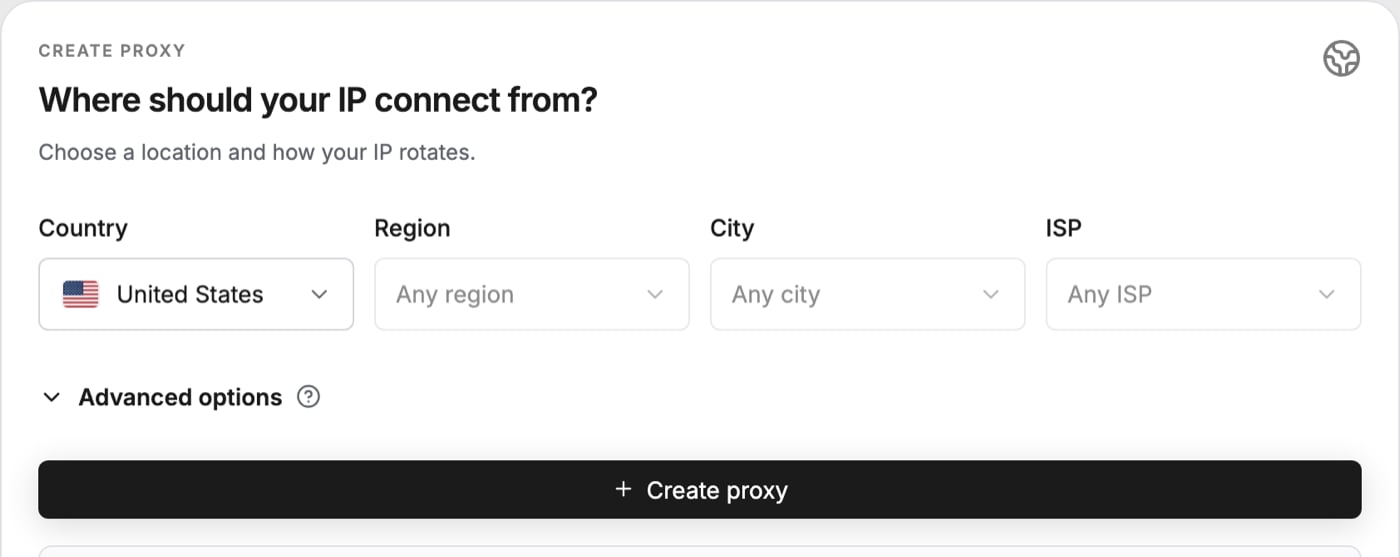
🧩 Copy it in your app’s format
A proxy is five parts. Apps ask for them in different orders, so pick the matching layout in Format and click Copy.
Same parts, different order
🔌 SOCKS5 or HTTP
The default is SOCKS5. If your app only takes HTTP, open Advanced options and switch Protocol to HTTP / HTTPS. Use the same protocol in the dashboard and in your app.📦 Many proxies at once
Set Endpoints to how many you need, up to 1,000, then click Copy or .txt. Each line is its own connection. Want to keep them? Saved lists stores lists with their own location and rotation, and downloads them in the format you pick.Changed a setting? Click Create proxy again and paste the new details into your app.